# Setup with Oraxen
{% hint style="info" %}
**Requirements**: This method requires [Oraxen](https://www.spigotmc.org/resources/%E2%98%84%EF%B8%8F-oraxen-custom-items-blocks-emotes-furniture-resourcepack-and-gui-1-18-1-21-4.72448/) to be installed.
{% endhint %}
To add the models, the keys, and the custom ui to your resource pack, follow these steps:
## Step 1:
Find the **christmas\_crate\_and\_tools\_oraxen** folder. Inside, there is the resource pack for the keys and the static version of the crates, the fonts, and the items.
Main Folder
## Step 2:
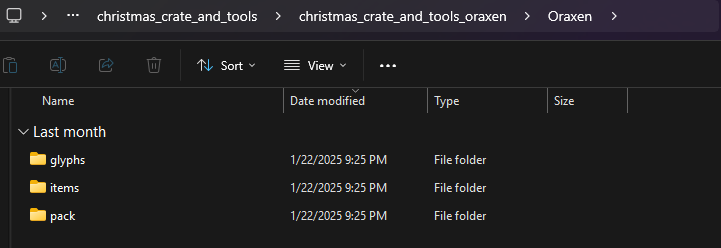
Open the **christmas\_crate\_and\_tools\_oraxen** folder. Inside, you will find the glyphs, items and pack folders.
## Step 3:
1. Drag and drop the contents of the **items** folder to your resourcepack's **items** folder.
2. Drag and drop the contents of the **pack** folder to your resourcepack's **pack** folder.
3. Drag and drop the contents of the **glyphs** folder to your resourcepack's **pack** folder.
## Step 4:
Now make sure to run the **/oraxen reload all** command to zip a new resourcepack.
***
{% hint style="info" %}
\[Optional] Follow, only if you want to import the animated version of the crate by using Model Engine.
{% endhint %}
## Step 5: (Optional)
Continue with the [Setup with Model Engine](https://wiki.myphoenixstore.com/models/crate-models/christmas-crate-and-tools/setup-with-model-engine) and follow the Oraxen merge installation guide.
.png?alt=media&token=572cf166-4ebb-4270-8a00-873f5f8a6d8c)